Guide
How to use OWN
From opening the box to the first scan: adding a tag, putting it on, the tracker, and what happens when someone finds your things.
The videos
Each one shows a step in the app, in under half a minute. Pick one.
Add your tag in the app
Get the app and sign in, then add each tag once. It takes about a minute.
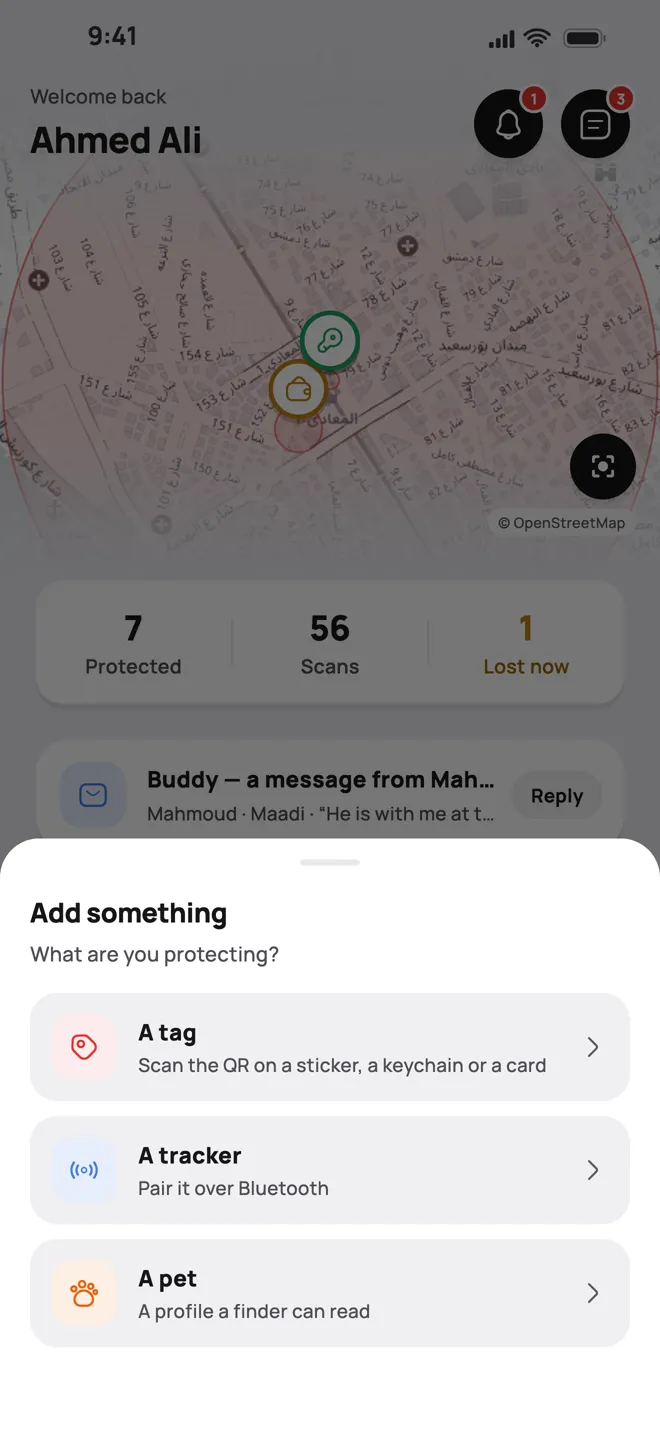
1. Tap Add something, then choose Tag.
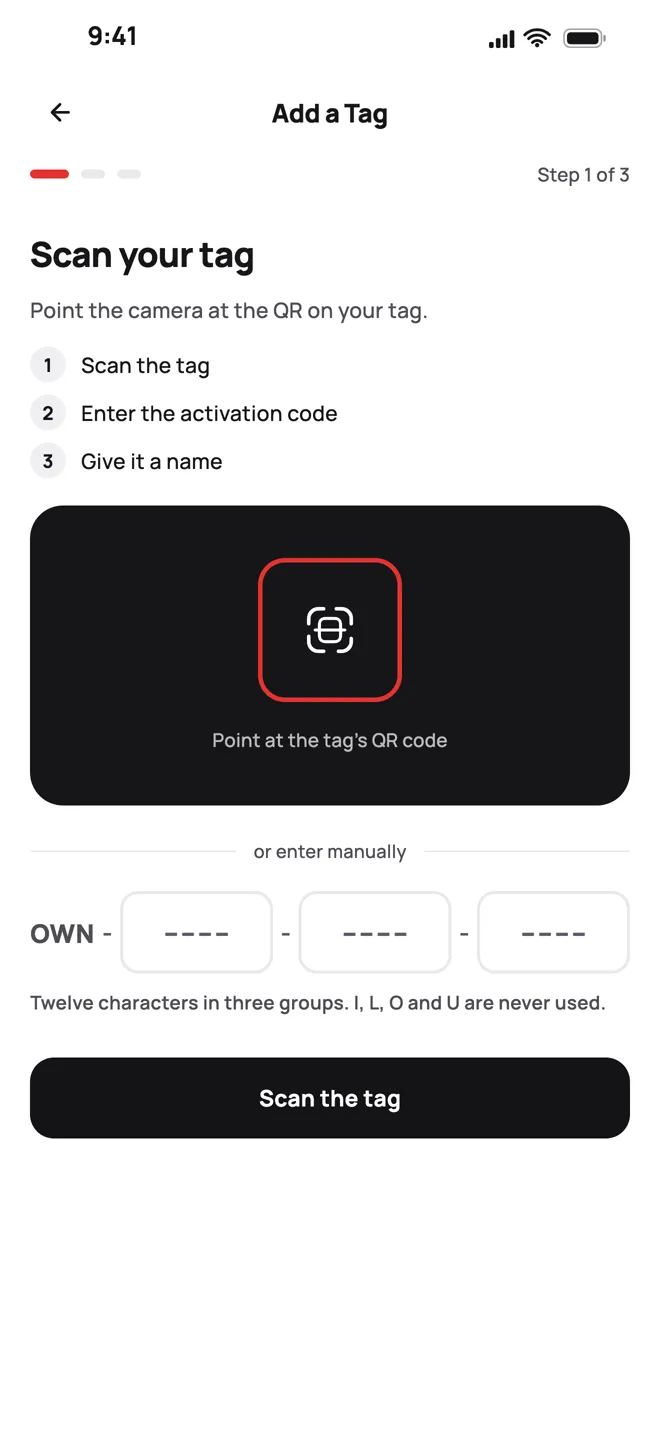
2. Scan the QR code on your tag, or type the code printed on it.
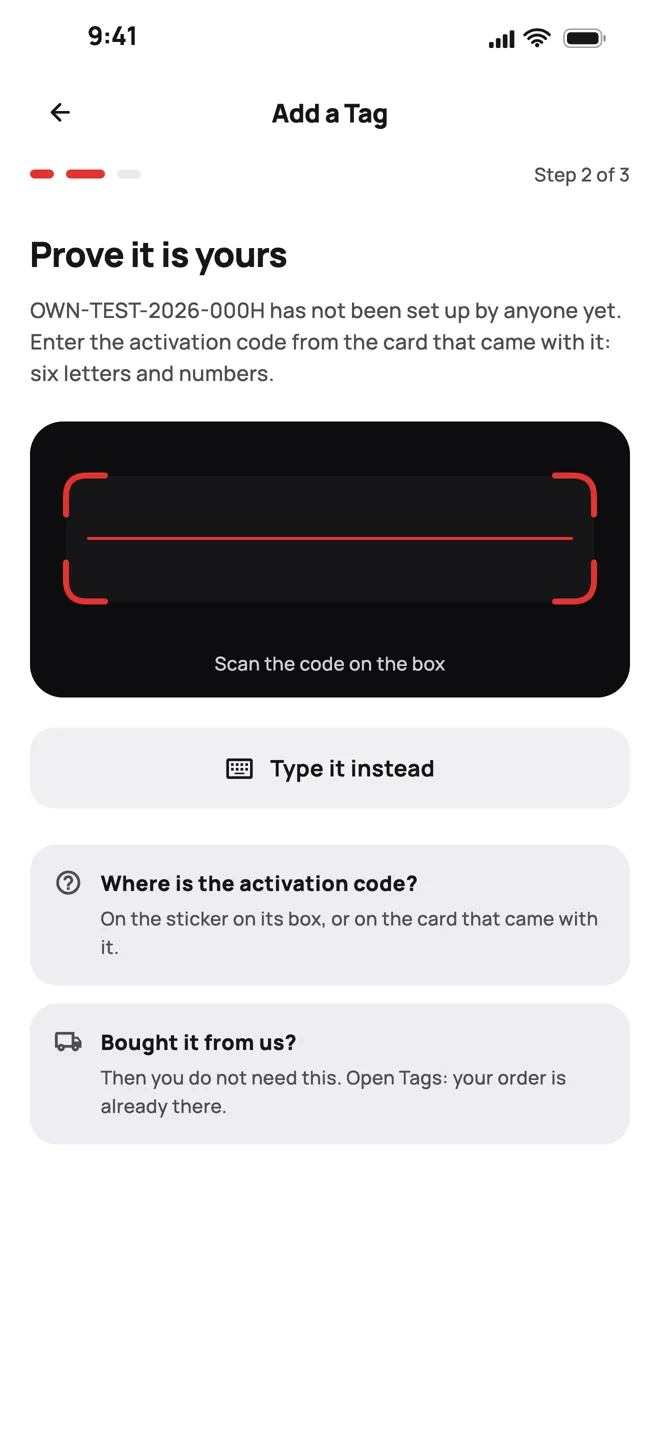
3. Prove it is yours: scan or type the activation code on the card in the box.
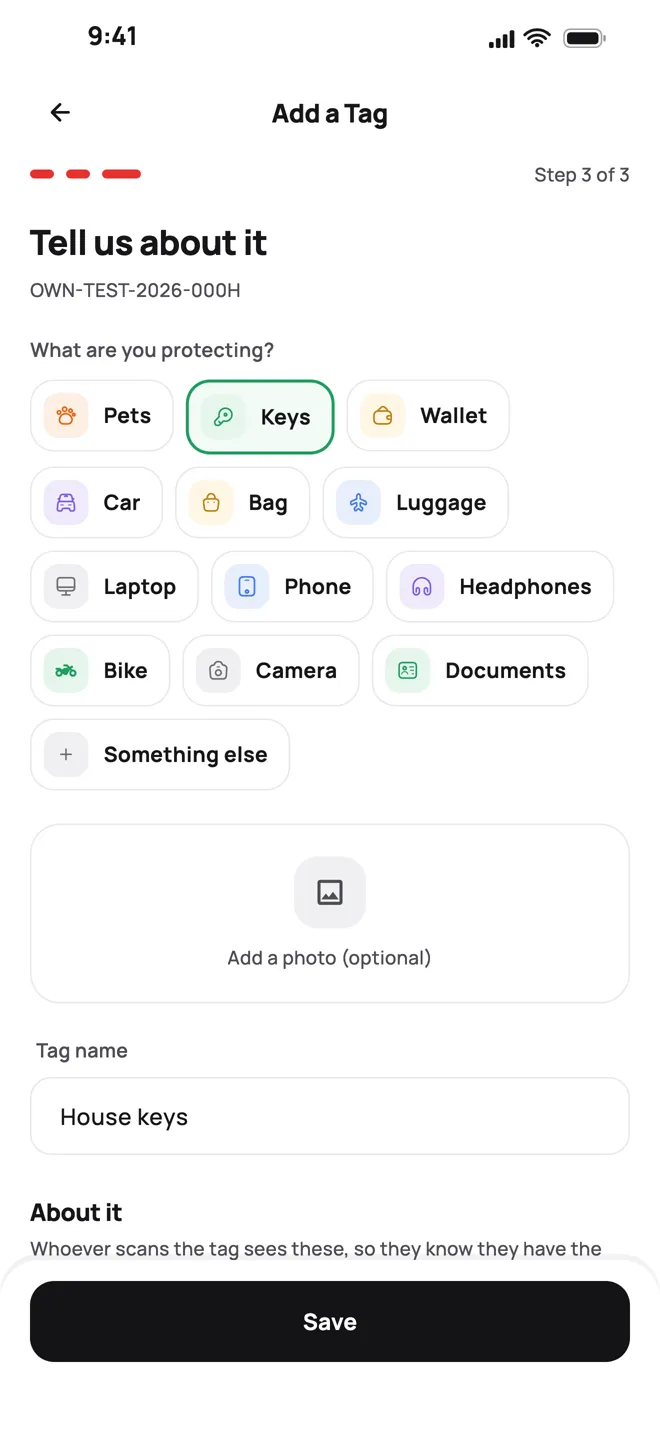
4. Choose what it protects and give it a name.
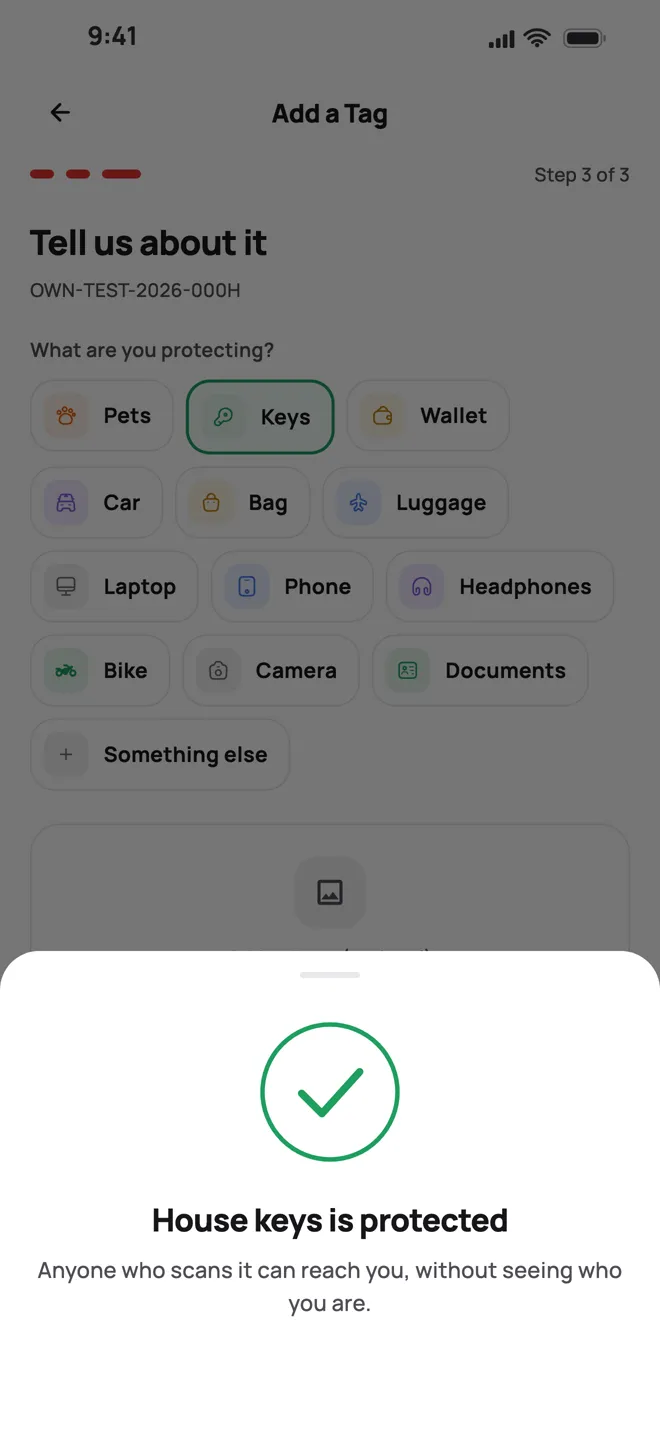
5. Done. Whoever scans it can reach you, without knowing your number.
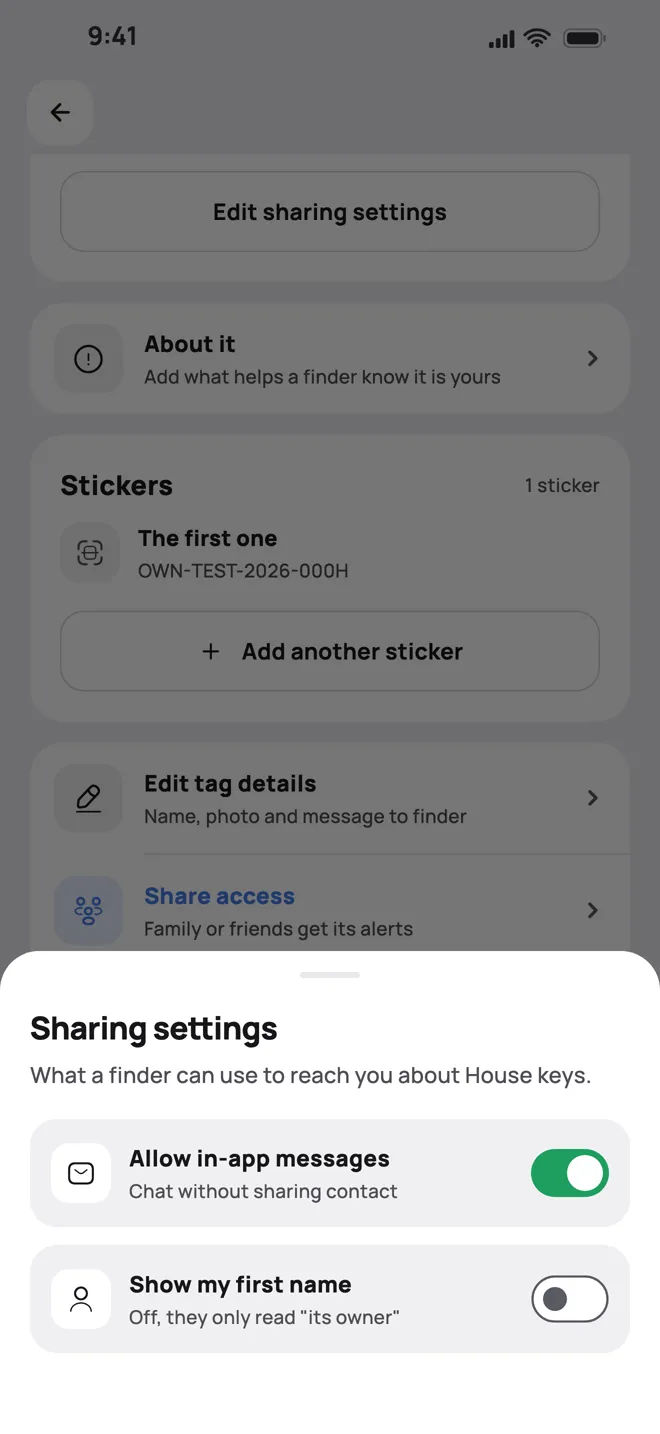
6. From the tag's page, choose what a finder sees: chat in the app, and your first name or not.
Put it on
Where each piece goes, and how to make it stay.
Pick your piece
The 7×10 cm resin sticker, for the outside of the glass.
1. Pick a spot people can see from outside, such as the rear window or the glass by the driver's door. Keep it out of the wipers' path and off the heater lines, and never where it blocks the driver's view.
2. Clean the glass with glass cleaner or an alcohol wipe, and let it dry completely.
3. Put it on in the shade, and not when it is very cold. Peel the backing off slowly, without touching the glue.
4. Place it, then press firmly from the centre outward for about 30 seconds.
5. Keep it dry and away from car washes for 24 hours.
6. Then scan it once, to check it opens your tag.
Add your OWN Tracker
The tracker is added in the app the same way, over Bluetooth.
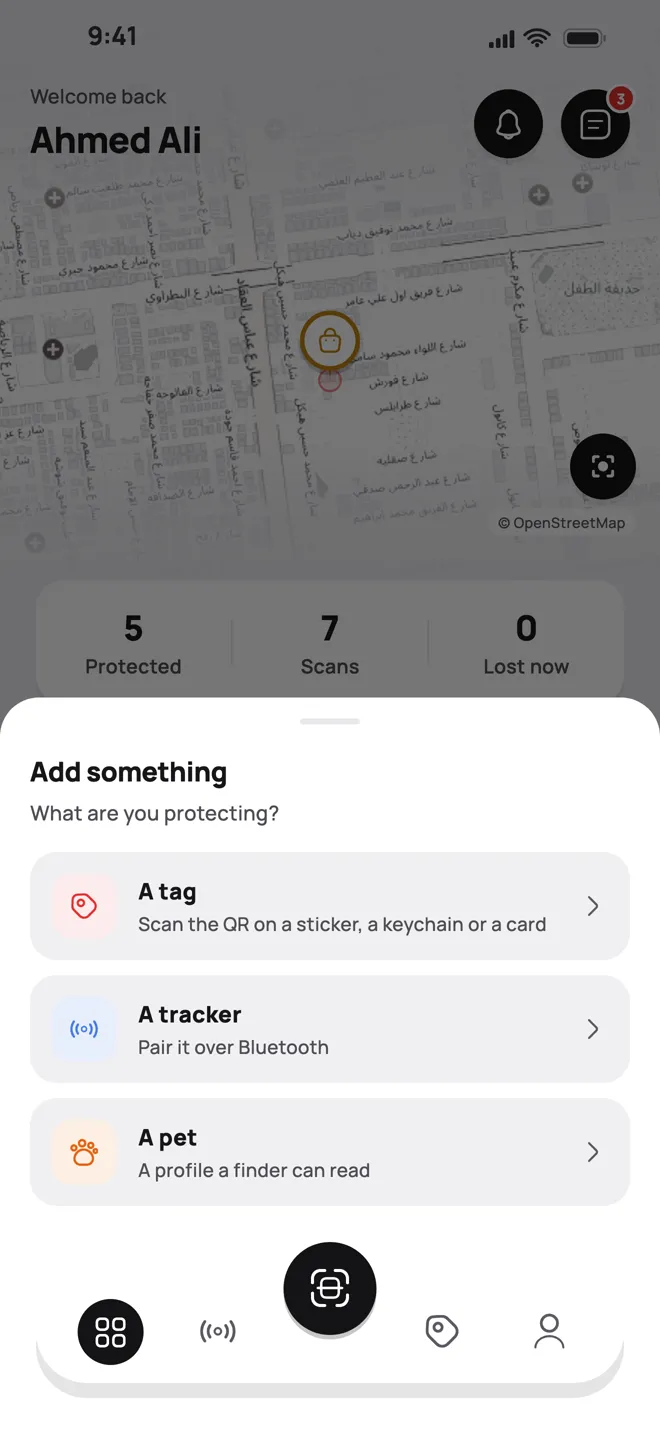
1. Tap Add something, then choose Tracker.
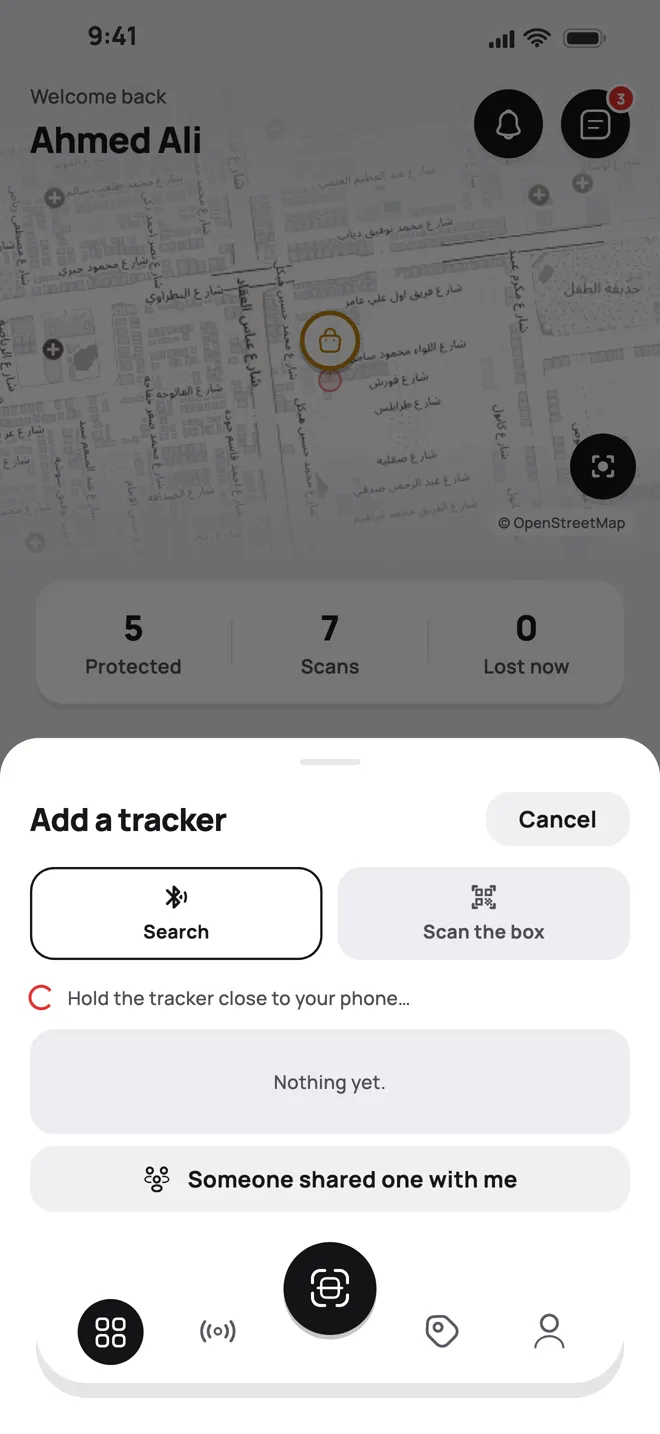
2. Hold the tracker next to your phone with Bluetooth on. The app finds it.
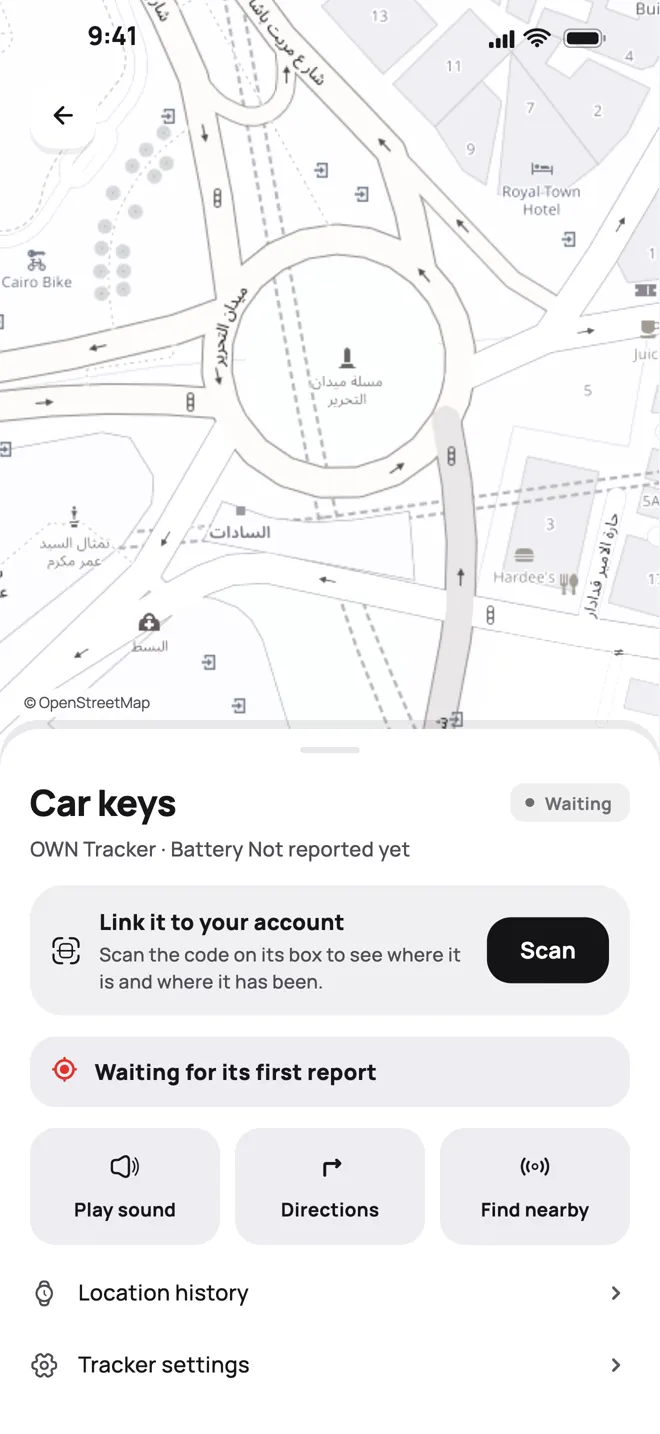
3. Name it and finish. Its page shows its last place and lets you ring it.
Ring it and find it
When the tracker is somewhere near you and you cannot see it.
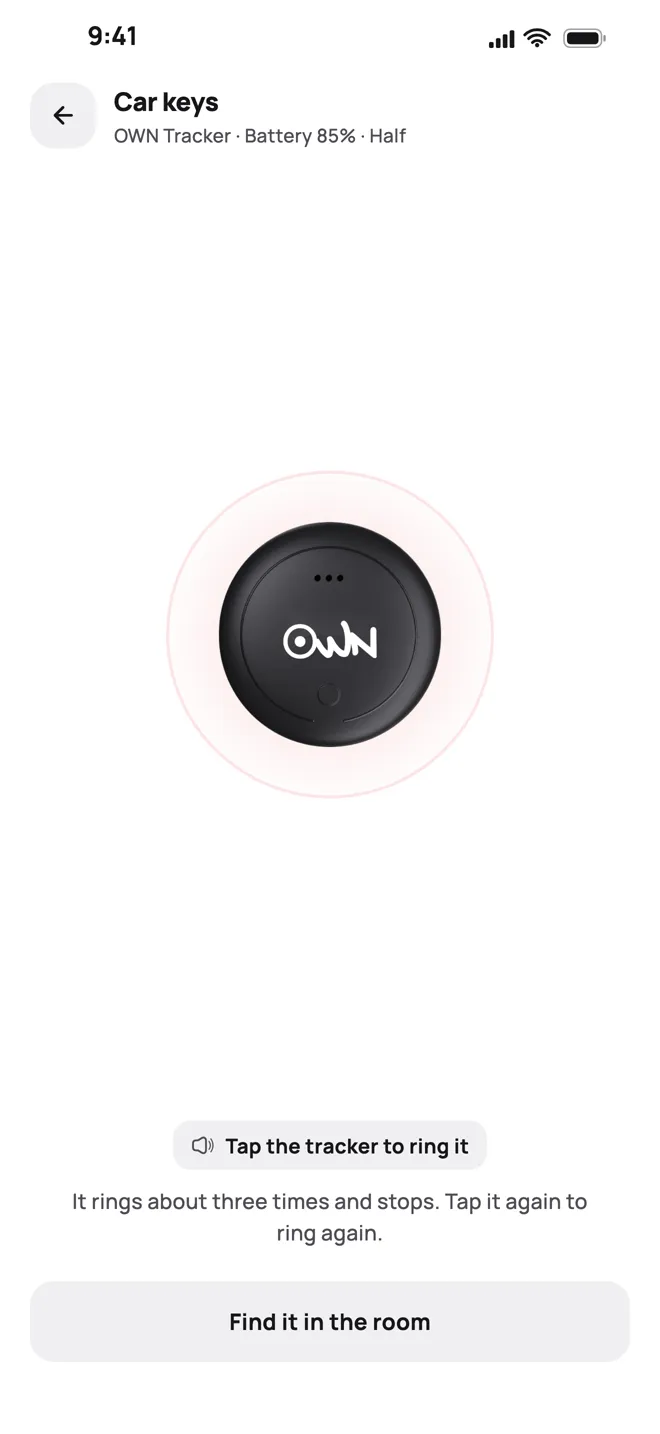
1. Open the tracker and tap Play sound.
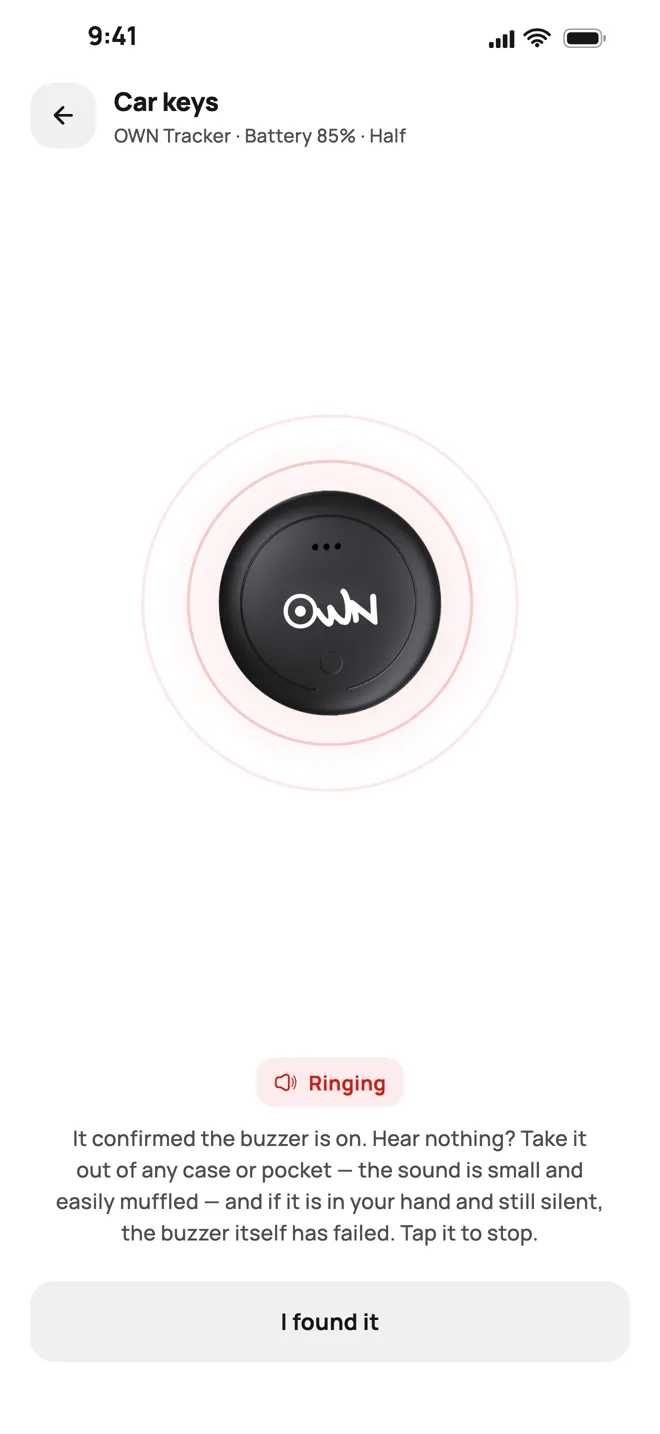
2. It rings while you are in Bluetooth range. Tap Found it when you have it.
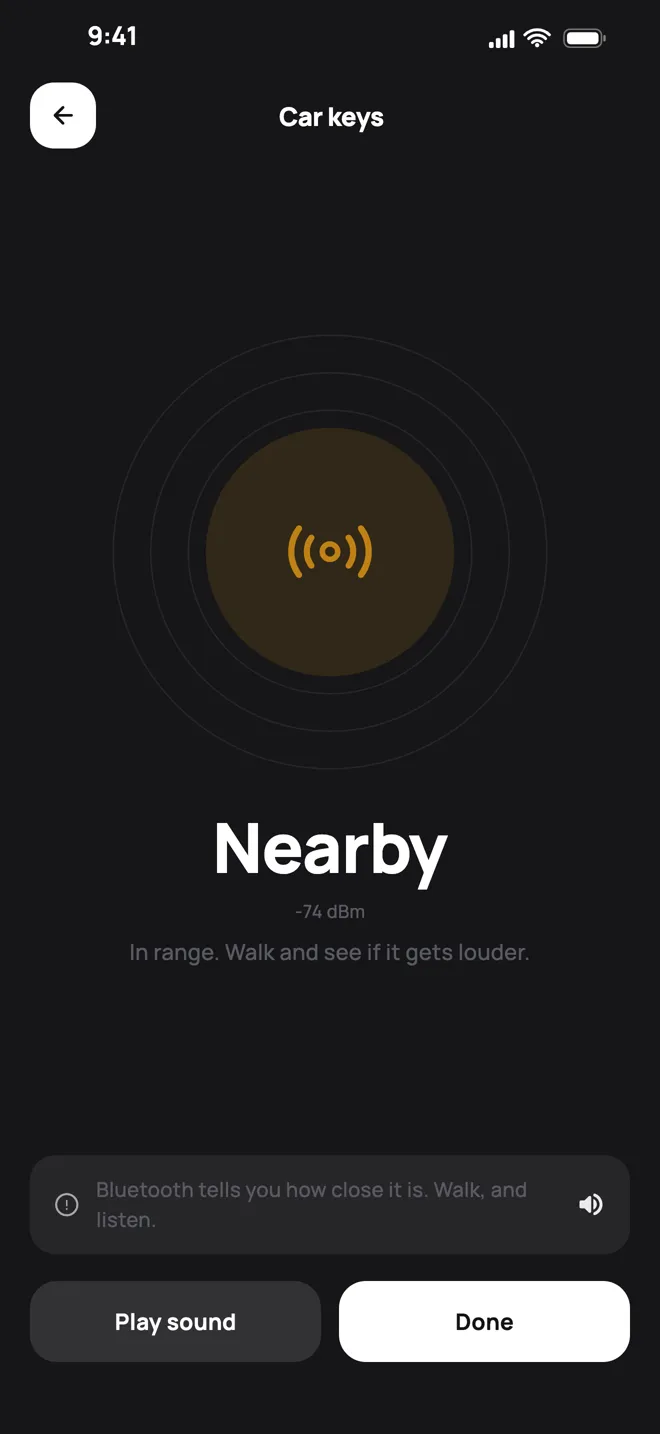
3. Cannot see it? Find it nearby tells you whether you are getting closer as you walk.
When someone scans your tag
What happens when somebody finds your things and scans the code.
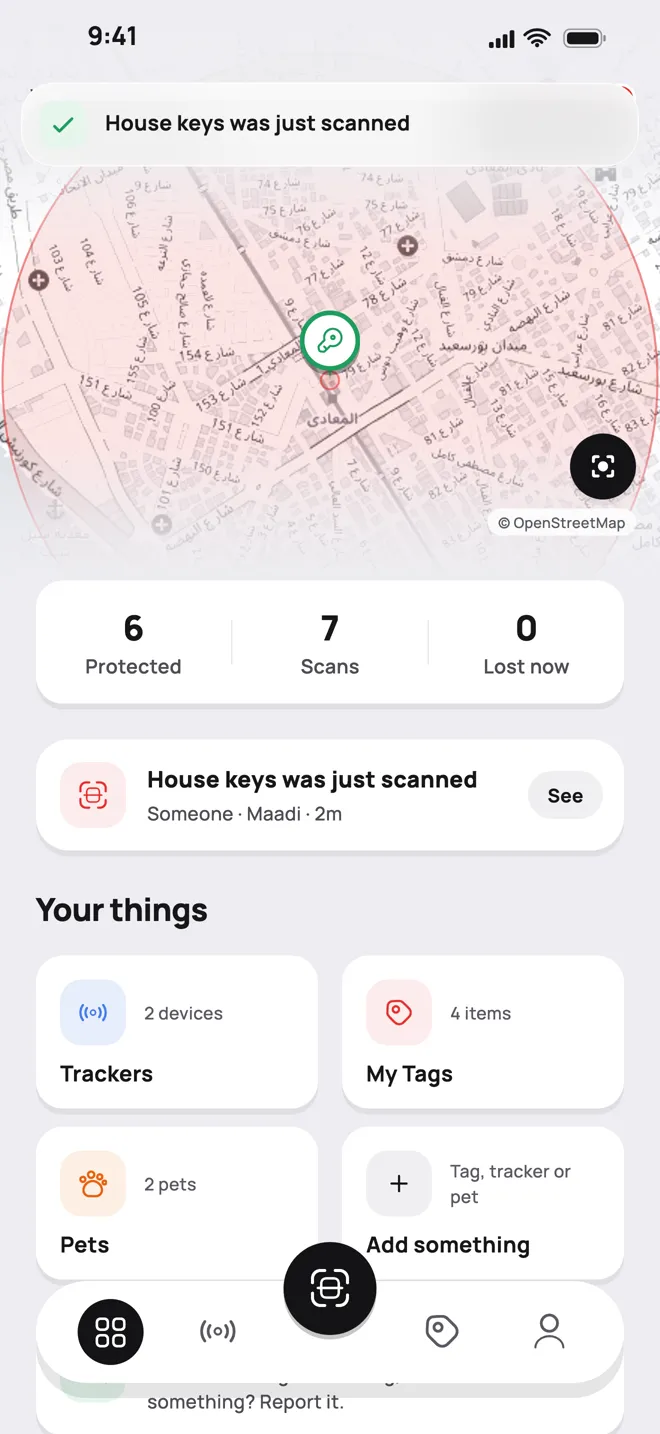
1. You are alerted at once, with the place it was scanned if the finder shares it.
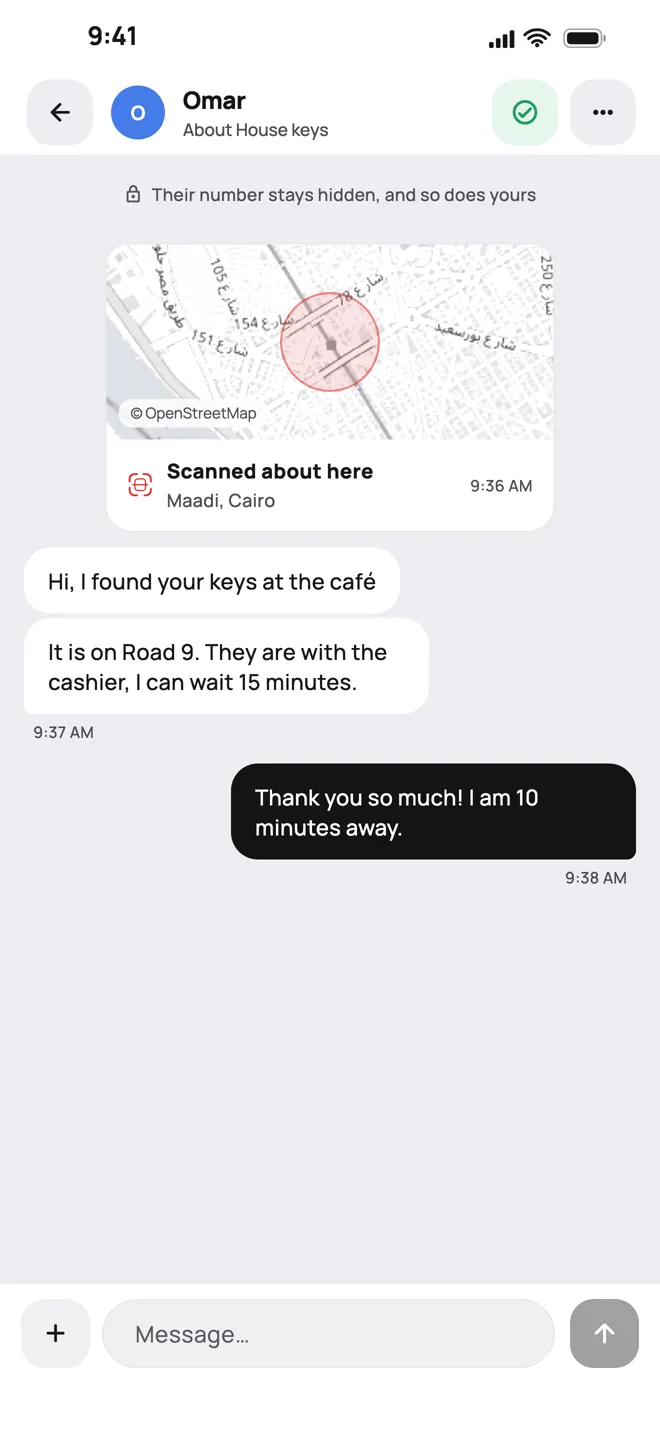
2. Talk in the app. Neither of you sees the other's number.
Still stuck? We will help.